Showing posts with label Windows 7. Show all posts

Tuesday, May 18, 2010

Add the Quick Launch Bar to the Taskbar in Windows 7

The above screenshot is the Windows 7 taskbar after changing back to XP/Vista mode, and adding the quick launch bar back. Looks just like Vista doesn’t it?

Adding the Quick Launch Bar Back to Windows 7

To add the toolbar back, you’ll want to right-click on an open area of the taskbar, and choose Toolbars \ New Toolbar from the menu. You should probably also unlock the taskbar at this point.

Windows 7 Taskbar Menu

Now’s the slightly tricky part… you’ll want to paste the following path into the location bar:

%appdata%\Microsoft\Internet Explorer\Quick Launch

Windows 7 Add Quick Launch

Make sure that the location bar shows the full path, like the next screenshot, before you choose the “Select Folder” button.

Windows 7 Quick Launch Full Path

You’ll immediately notice the Quick Launch toolbar on the taskbar, but it’s all the way over on the right, so you’ll want to click on the dotted lines and then drag the toolbar all the way to the left (which is slightly tricky sometimes). Note that you’ll need to right-click and unlock the taskbar before you can move the toolbar.

Windows 7 Quick Launch on Right

There we go, it’s over on the left… but now you’ll want to adjust the regular taskbar toolbar to be closer to the left, so use the dotted lines to drag it over as well.

Windows 7 Quick Launch on Left

The normal Quick Launch that we’re used to doesn’t have text, so right-click on the dotted lines and uncheck “Show Text” as well as “Show Title” from the menu.

Windows 7 Remove Text from Toolbar

Once you’re sure it’s the way you want it, you should check the “Lock the taskbar” again.

Windows 7 Quick Launch

And there you are, the quick launch bar has returned and there’s virtually no way anybody would know this is Windows 7.

Thursday, April 8, 2010

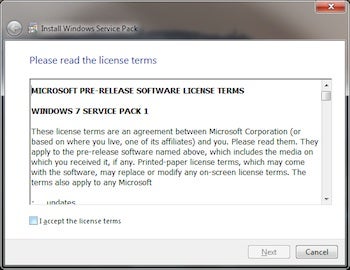
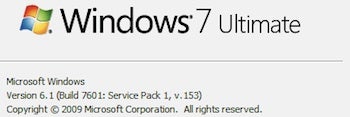
Windows 7 Service Pack 1 Beta Leaked, Screenshots Surface


An early build of Windows 7's first service pack has been leaked, leading to thousands of downloads on a whole host of various torrent Web sites.

As with every Windows operating system (OS) release, improvements and fixes often arrive in the form of a service pack, and only last month the Windows team discussed the upcoming Windows 7 SP1 release in a blog post. The team detailed that the first service pack would feature a number of minor updates for the popular OS. However, it is worth noting that the Windows team did not mention a final release date for the completed service pack .

This leaked beta, which was compiled on March 27 and identifies itself as build number "6.1.7601.16537.amd64fre.win7.100327-0053," gives an incomplete indication as to what progress is being made on the upcoming service pack, and as such should not be seen as a complete product.

Early reports from those who have gone ahead and installed the beta have already surfaced. Downloaders say that the Windows 7 installation procedure is considerably faster than the service pack installation experienced when using Windows Vista.

Microsoft has not officially announced when the final first service pack will be available. If you have tried the 'unofficial' beta be sure to let us know in the comments.

More images of the installation process can be found on Geek Smack.

Tuesday, November 3, 2009

10 Essential Windows 7 Downloads

Nov 1, 2009 1:36 am

Windows 7 may be brand new, but that doesn't mean you can't find free or cheap tools to tweak its settings, supplement its features, or smooth an upgrade from XP or Vista. We've compiled a list of ten valuable software tools--many of them free--that can make your Win 7 experience a lot more rewarding. (Click on any of the images for a closer look at that tool.)
Microsoft Security Essentials

Like its predecessors, Windows 7 doesn't provide built-in protection against malware such as viruses and spyware. (It does have a firewall, however.) You could pay McAfee or Symantec for this service, but why bother with their protection racket when Redmond's service does the same thing for free? Microsoft Security Essentials provides solid protection for home PCs, and it's gratis. If you prefer third-party security, check out AVG Anti-Virus Free Edition instead.
Ninite

Brave souls upgrading to Windows 7 from XP must do a clean install, a tedious process that includes, among other things, reinstalling all apps. Instead, why not load most of your free and open-source programs all at once? Ninite does just that. First, go to the Ninite site and pick the programs you want (for instance, Firefox, iTunes, and Skype). Next, download Ninite, which installs the apps on your PC without introducing additional crapware. Ninite is free for personal use.
Windows Live Photo Gallery

To keep Windows 7 slim and trim--and to avoid the code bloat that slowed Vista--Microsoft left a few utilities out of its new operating system.

One such app, Photo Gallery, is a free, easy-to-use photo manager/editor that's worth a download, particularly if you aren't already using Google Picasa to organize your pics and videos.
Windows Easy Transfer

If you are moving to Windows 7 from XP or Vista, you should check out this free download, which helps you copy files and settings from one PC to another. (Windows 7 comes with Easy Transfer.)

The new version of Easy Transfer adds a file explorer, which simplifies the task of selecting the specific files you want to copy. Easy Transfer won't hang if it comes across a file or setting it can't move. Rather, it will complete the transfer and then provide a report detailing everything it couldn't copy. The bad news: Easy Transfer won't copy your programs. For a PC-to-PC connection, you'll need an Easy Transfer Cable (about $20). Other transfer options include a USB flash drive, an external hard disk, or a network connection.
Ultimate Windows Tweaker v2

This free customization tool detects whether you're running Windows 7 or Vista, and offers only the tweaks relevant to your OS. "Ultimate" is a fitting description for this mega-tweaker, which provides dozens of configuration options for UI, network, security, and system settings. If you're all about personalizing Windows 7, this app is for you.
WinZip 14 Standard

If Windows 7 has zip compression built in, you're undoubtedly wondering, why do I need the latest version of WinZip? Well, if you seldom use zip archives, you probably don't. But zip fans will appreciate the improvements in WinZip 14 Standard, which has simplified the process of zipping and mailing archives in Win 7.

The latest version offers better compression ratios too. WinZip 14 Standard costs $30.
EnhanceMySe7en Free

Windows 7 may be easier to use than Vista or XP, but diagnostic and maintenance chores remain tricky. EnhanceMySe7en is a handy utility for anyone interested in doing a little system housekeeping.

This free app conveniently helps you select which programs to permit to load at startup; lets monitor your hard drive's performance, health, and temperature; and enables you to fiddle with the Registry--if you dare.
Image Resizer Powertoy Clone

Need to resize pictures in Windows 7? This free utility makes it easy. Simply right-click one or more image files in Windows Explorer. You can select one of four sizes: small (640 by 480); medium (800 by 600); large (1024 by 768); or handheld PC (240 by 320). You can create your own custom sizes, too.
Systerac Tools for Windows 7

This bundle of 16 tools from Systerac has everything you'll need to keep Windows 7 running smoothly. You can tweak Windows' performance and appearance, optimize memory, clean up the hard drive, cover your tracks by shredding files, and so on. The Systerac interface is aesthetically appealing, nicely organized, and a snap to learn. The $20 Windows 7 version runs on Vista as well.
Windows 7 Upgrade Advisor

Don't upgrade to Windows 7 before running this free utility from Microsoft. Upgrade Advisor scans your PC to see if it's ready for Windows 7. If it detects any potential problems--from insufficient memory to incompatible hardware to outdated software--it'll let you know in a summary report.

Thursday, October 22, 2009

Windows 7 system requirements

  1. 1 gigahertz (GHz) or faster 32-bit (x86) or 64-bit (x64) processor
  2. 1 gigabyte (GB) RAM (32-bit) or 2 GB RAM (64-bit)
  3. 16 GB available hard disk space (32-bit) or 20 GB (64-bit)
  4. DirectX 9 graphics device with WDDM 1.0 or higher driver
Additional requirements to use certain features:

  • Internet access (fees may apply)

  • Depending on resolution, video playback may require additional memory and advanced graphics hardware

  • Some games and programs might require a graphics card compatible with DirectX 10 or higher for optimal performance

  • For some Windows Media Center functionality a TV tuner and additional hardware may be required

  • Windows Touch and Tablet PCs require specific hardware

  • HomeGroup requires a network and PCs running Windows 7

  • DVD/CD authoring requires a compatible optical drive

  • BitLocker requires Trusted Platform Module (TPM) 1.2

  • BitLocker To Go requires a USB flash drive

  • Windows XP Mode requires an additional 1 GB of RAM, an additional 15 GB of available hard disk space, and a processor capable of hardware virtualization with Intel VT or AMD-V turned on

  • Music and sound require audio output

Product functionality and graphics may vary based on your system configuration. Some features may require advanced or additional hardware.